The short answer: 1080 × 1920, vertical
Instagram Reels, TikTok and YouTube Shorts all fill a phone held upright, so they all use the same shape: 9:16, which means the video is 9 units wide for every 16 units tall. The size that the three recommend is 1080 pixels wide by 1920 pixels tall, often written 1080p vertical.
A video made at this size can go to all three apps without changes. Smaller vertical videos, such as 720 × 1280, also work and upload faster, but they look softer on large phones. Larger ones, such as 4K vertical, are accepted and scaled down.
| Spec | Instagram Reels | TikTok | YouTube Shorts |
|---|---|---|---|
| Shape | 9:16 vertical | 9:16 vertical | 9:16 vertical (square also accepted) |
| Recommended size | 1080 × 1920 | 1080 × 1920 | 1080 × 1920 |
| Longest video | About 3 minutes | Up to 10 minutes recorded in the app, longer when uploaded | Up to 3 minutes |
| File | MP4 or MOV | MP4 or MOV | MP4 or MOV |
| Frame rate | 30 fps works everywhere | 30 fps works everywhere | 30 or 60 fps |
The apps change their length limits from time to time, so if a video is close to the limit, check the upload screen of the app. The shape and the recommended size have stayed the same for years.
Keep important things inside the safe zone
The three apps draw buttons, the caption, the account name and the music over the bottom and the right side of the video. Anything you put there, such as subtitles, a price or a face, can end up hidden behind the like button or the description.
A simple rule works for all of them: keep text and faces in the middle of the frame, away from the bottom fifth and the right edge. On a 1080 × 1920 video, that means roughly between 250 and 1500 pixels from the top, with a margin of about 120 pixels on the right. Our automatic caption generator places captions in the lower middle or the middle of the picture for this reason, never at the very bottom.
What happens to a horizontal video
If you post a 16:9 video, filmed with the phone sideways, the apps show it as a thin strip across the middle of the screen with empty bands above and below. It looks smaller, people scroll past it more easily, and some apps crop it automatically, cutting off whatever was at the sides.
You have three ways to turn it into a vertical video, and each one suits a different kind of picture:
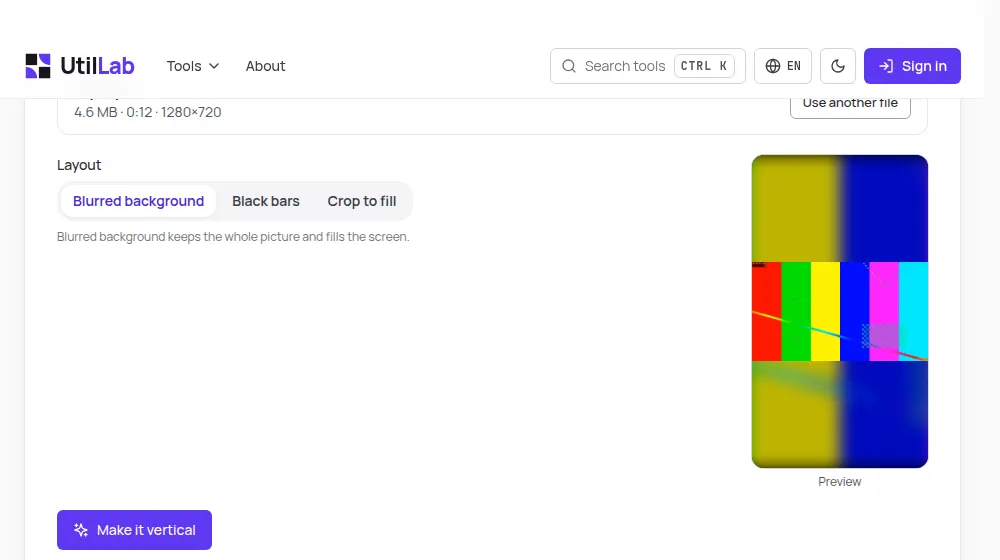
- Blurred background: the whole picture stays, placed in the middle, and a blurred, enlarged copy fills the empty space. Best for landscapes, groups and anything where the sides matter.
- Black bars: the same, with plain black above and below. Cleaner, but it looks like a horizontal video on a vertical screen.
- Crop to fill: the picture is enlarged until it fills the screen, and the sides are cut. Best for one person talking, as long as they stay in the part you keep.
The vertical video converter does all three in your browser, with a preview of what stays and a choice of left, centre or right when you crop. The video isn't uploaded anywhere.
Filming vertical from the start
- Hold the phone upright and lock the screen rotation, so the camera doesn't switch to horizontal halfway through.
- Use the main camera at 1080p and 30 frames per second. It's enough for every app, and the files stay manageable.
- Leave some space above the head and keep your face in the upper half of the frame, so the captions at the bottom don't cover your mouth.
- Record a few seconds before and after what you say. It's easier to cut extra seconds than to fix a sentence that starts or ends abruptly.
Covers and thumbnails
Each app picks a frame of the video as its cover, or lets you choose one. On the profile grid, Instagram shows the cover cropped to a 3:4 rectangle and TikTok to a similar shape, so keep the title of the cover in the centre. A cover with a clear face or a few large words is easier to recognise in a grid of small pictures.
One video for all three apps
Because the shape and size are the same, you can make a video once and post it on Reels, TikTok and Shorts. Two things are worth changing for each app: the caption and hashtags, which follow each app's habits, and any watermark. The apps prefer videos without another app's logo on them, and some show them to fewer people, so post your original file rather than one saved from another app.
If you're starting from an idea rather than from footage, the AI video maker writes the script, adds a voice, captions and music and gives you a 1080 × 1920 video ready for the three apps.